

Automated Emails
Updated May 7, 2026
The email automations from edudip
The email automations from edudip offer you the option of making email notifications even more individual for your participants.
Automated emails
As usual, the “Automated Emails” menu item is located on the left side of the screen in the menu bar. Open the automated email notifications, you then have the option to view and edit the standard emails for the various events. Here you have the option to create a variety of templates for each of the events, which you can later assign to your webinars as you wish.
‘After registration’: Once a participant has registered for the webinar, they will receive an automated confirmation email. Here, you can specify the exact content of the confirmation template.
‘Webinar reminder’: If required, registered webinar participants will receive up to two automated emails reminding them of the event before it begins. Here, you can customise the content of the template and specify the times at which the emails should be sent.
‘After the webinar has ended’: If required, registered webinar participants will receive up to two automated emails regarding their attendance at the event after the webinar has ended. You have the option to send these automated emails only to participants who were present during the webinar. A participant is counted as present if they were present for at least half of the webinar’s duration. Here, you can also include information about future dates or a recording link. Set the time at which the email is to be sent.
‘Double opt-in’: This automated email is only sent to participants who wish to subscribe to your newsletter and who have ticked the double opt-in checkbox on your webinar registration form. You can customise the template here. Once a participant clicks the double opt-in button in this email, their newsletter subscription is complete.
Furthermore, different broadcast times can be set for the various templates.

For each use case, a standard template can also be optionally defined and stored, which is automatically assigned to newly created webinars. For this to be the case, the option must be activated and the default template must be selected. However, the presenter of a webinar has the option to go to the webinar settings under”
The right template for every webinar
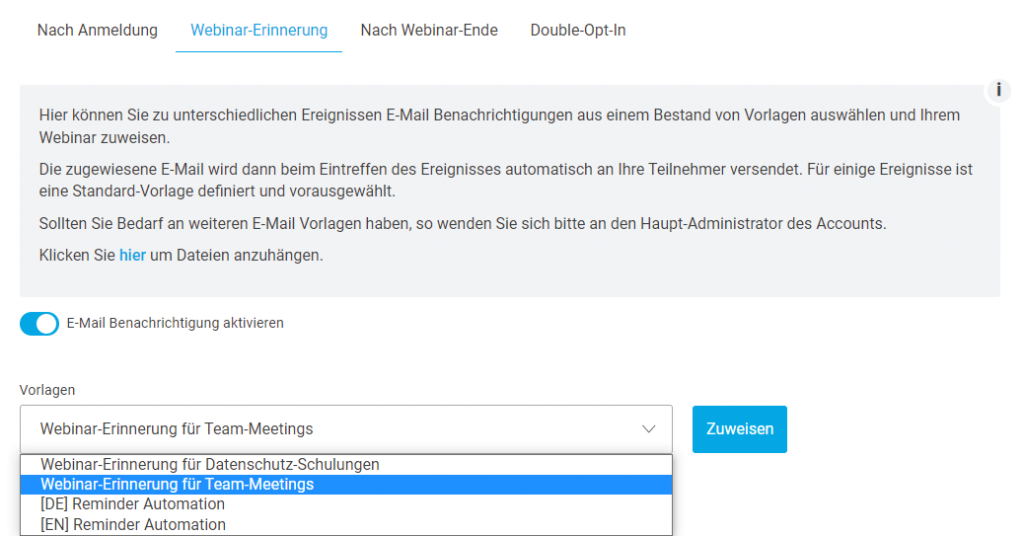
Let's illustrate the whole thing with an example and assume that you regularly host various webinar formats in your company. You use webinars for annual data protection training for your employees and hold customer appointments and monthly team meetings with edudip next. You want to send different webinar reminders to your webinar participants in advance and customize the content of the notifications for each webinar.
Step 1: Personalized templates for different events
Go to the ‘Automated Emails’ menu item and select the desired event, e.g. webinar reminder. You can now create as many customised email notifications as you like and set the respective send times. You can insert personalised placeholders, such as webinar title, first name, surname, landing page link, webinar start time, webinar date or the recording link. Click on one of the placeholders on the right-hand side to insert it at the selected point in the text.

Step 2 (optional): Set the default template for each event
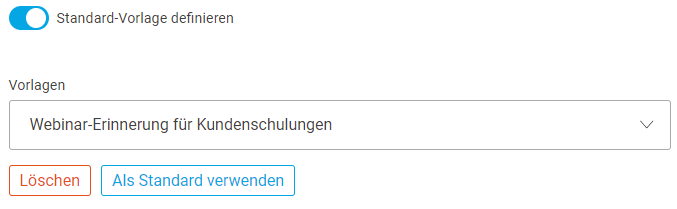
Optionally, define a standard template that should be automatically assigned to newly created webinars in case an individual template has not been selected. If you have not saved a standard template and have not selected an individual template for a webinar, the edudip next template will automatically be used.
Step 3: Assign desired templates to the webinar
To assign the desired templates to a webinar, please open the “Webinar” menu item and select the webinar you wish to edit. Click on “Assign automated emails” on the right-hand side of the screen and select the desired email template for each event.