


Team management
Updated May 7, 2026
Under the ‘Team Management’ menu item, you’ll find an overview of the roles you can assign to your team, such as moderator, administrator or accountant. By clicking the three dots to the right of your name, you can edit your role, revoke the meeting room or moderator licence, or even delete your profile entirely.
If you require additional moderator licences, only the main licence holder can purchase the required licence via the “Purchase new licence” button in the “Team management” section. To then assign the purchased licences to your team members, select the relevant user after clicking the “Assign licence” button. Here, you will also be shown how many moderator licences you still have available to assign.

If colleagues to whom you wish to assign a moderator licence are not yet on the list, you can add them via email using the ‘Invite new team member’ button and grant them the required access rights. The invited team members can then register via this invitation email and will be automatically assigned to your team. In Team Management, you as the administrator will also see the number of available meeting rooms, which you can assign to the relevant team members there.
Note that a person with an email address cannot be represented on two simultaneous appointments. The main licensee alone has the option to book an additional meeting room if required; the moderator has no access to this booking area.
Corresponding roles in your team administration result in the following rights in your account:
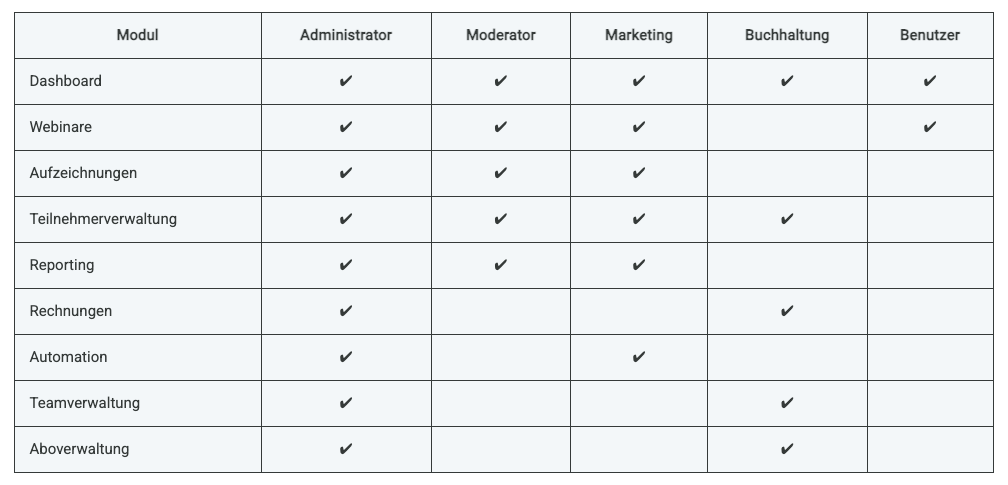
Please note: Up to three administrators can be assigned per account. Assigning a role does not replace a moderator licence or co-moderation rights.