

Keyboard controls & keyboard shortcuts
Updated May 8, 2026
This article provides an overview of the keyboard controls available to the various roles in the webinar, as well as a complete list of all available keyboard shortcuts.
It is now possible to participate in a webinar entirely using the keyboard. You can easily access all interactive elements in the room:
- Jump between items:
Use the Tabulator key (Tab)to jump step by step through all clickable elements, such as buttons, links, and interactive windows. - Jump back:
With Shift+Tab key (Shift+ Tab) Jump back to the previous item.
A list of keyboard shortcuts that are specifically available to you as a participant can be found below in the article.
There are two convenient options for presentation control:
- Control with arrow keys (after activation):
You can make your presentation as usual with the Left and right arrow keys steer. To do this, click once with the mouse in the presentation area to activate it. - Alternative control (possible at any time):
Regardless of which element in the room is currently active, you can use the keys at any time Picture on and Picture from navigate through your slides. This also works if you're currently writing in the chat or using another feature.
The following shortcuts are available to you as the moderator to help you manage the room and its content efficiently.

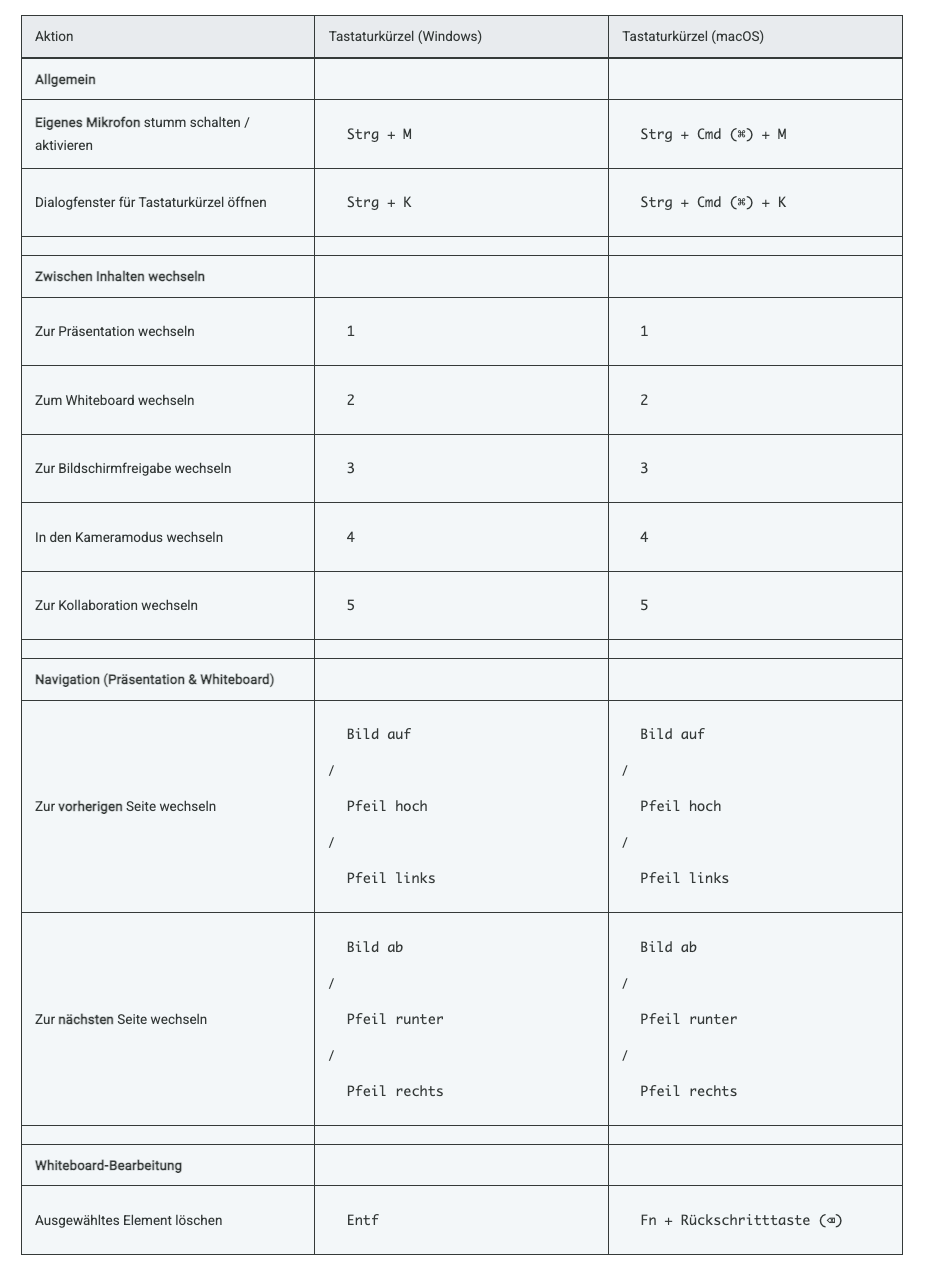
As a participant, the following general keyboard shortcuts are available:
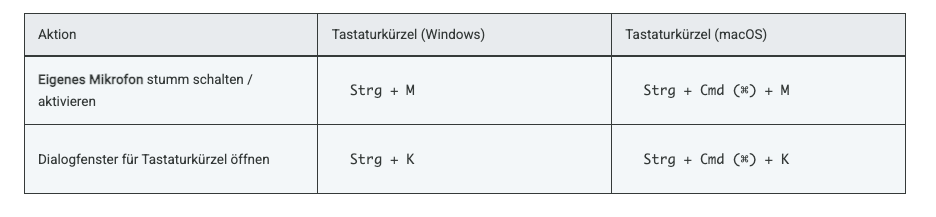
You can also find an overview at any time in the webinar room by clicking on your profile picture at the bottom left and selecting “keyboard shortcuts”.