


Design your webinar room
Updated May 6, 2026
Depending on the subscription you have booked, you can design the webinar room in your corporate design. During an active test phase, this function is activated.
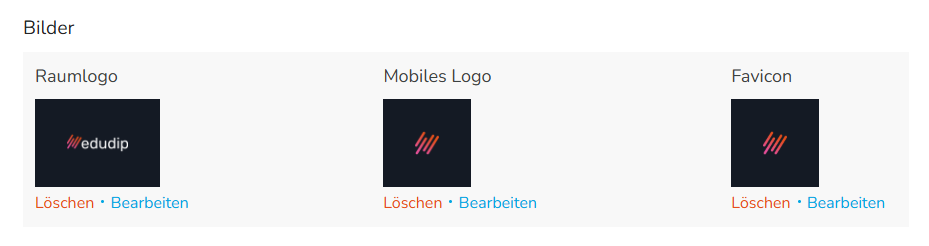
The room design settings can be found in the account settings. Open the “Settings” in the menu bar on the left and scroll down to the “Room in your own design” menu item. Here you can add your own company logo for the webinar room.
Please note that this does not automatically use the logo from the general account settings. The logo for the webinar room must be stored separately.
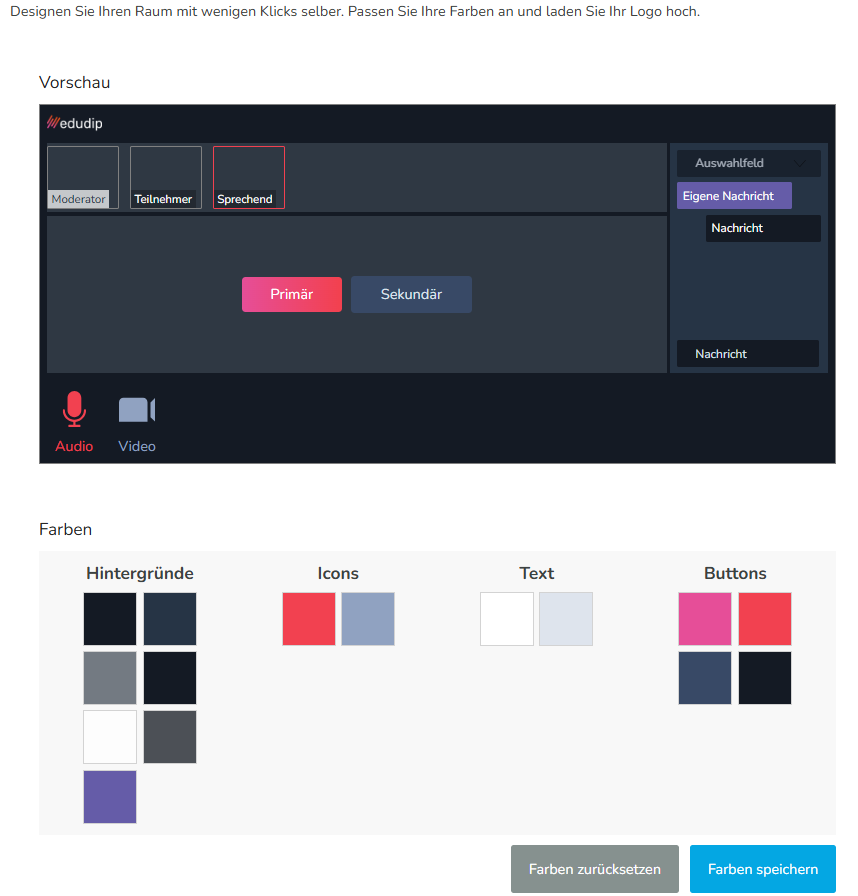
In addition, various color values can be adjusted for the webinar room. This allows the surface of the room to be more closely adapted to the appearance of your company.
We recommend that you make only a few and targeted adjustments first. Too many color changes can mean that individual elements no longer fit together optimally or important control elements are less easily recognizable.
After every major adjustment, the result should be reviewed in a webinar room. This ensures that colors, contrasts and logos look good in the actual room.
After you've checked the webinar room, your webinar is basically set up. We recommend that you conduct a short test webinar before the first real appointment. This allows you to review registration, emails, landing page, role distribution and room design once again from the perspective of the organizer and the participants.