


Breakout rooms
Updated May 4, 2026
In the webinar or meeting room, you as the moderator - and your co-moderators - can activate the breakout rooms using the breakout room icon at the bottom of the screen. If the breakout rooms are already active, the moderator can use the breakout room icon to stop the rooms or select a room to join. When the breakout rooms are stopped, your participants will receive a notification that the breakout rooms have been closed and will be redirected to the main room.

When you open the breakout rooms, both you as the moderator and the participants will initially be taken to the breakout dashboard. Here, as the moderator, you can choose the number of breakout rooms (1), have your participants automatically assigned to them (2), or place them in the desired rooms using drag and drop (3). You can also specify whether group members can move freely between the different breakout rooms or should remain assigned to a specific breakout room (4).

Thanks to the clear overview, you know exactly which participants are in which rooms. In each group room, you can make standardised documents available, or provide individual documents tailored to each group room. By selecting the highlighted areas, you can make different documents available to the rooms.

To share documents with all breakout rooms, click the “Share documents” button in the top-right corner of the breakout dashboard and then select the documents you wish to share. Please note that you can only share documents that you have previously uploaded to the main room or when creating your webinar or training session.

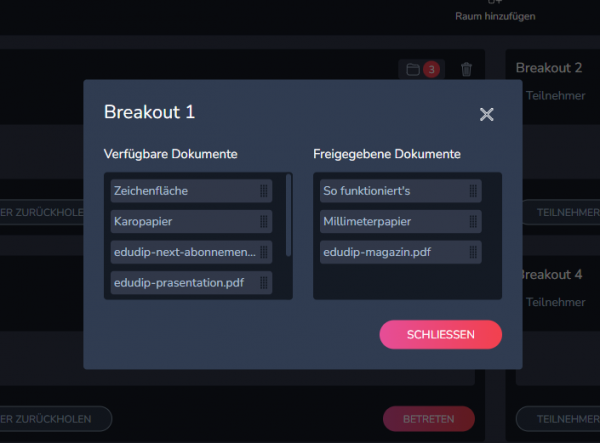
If you wish to share different documents for each breakout room, click on the document icon in the relevant group room on the breakout dashboard and drag and drop the desired documents into the ‘Shared Documents’ field
As the moderator, you can enter the breakout rooms at any time to assist your participants with their group work. Once the group work is complete, you can either bring all participants back to the main room using the “Bring everyone back” button, or bring back only the participants from specific groups. To announce the end of the group work or to communicate across rooms during the group work, you can use the Call-to-Action function, which is available via the megaphone icon in the top right-hand corner.
As a participant, you can also open the breakout dashboard at any time to view the group rooms created by the moderator. Depending on whether the moderator has enabled this feature for you, you can drag and drop your name into the relevant room as described above. If this feature is not enabled, the moderator alone decides when you are sent to which group room. As a participant, no further functions such as document management or the call-to-action function are available to you in the breakout dashboard. To close the breakout dashboard view and follow the actual content of the event in the room, please click ‘Close’ in the bottom right-hand corner.